
Switch from Squarespace 7.0 to 7.1 with this Step-by-Step Guide

Please note: this page contains affiliate links to products that I personally use and am a fan of. By purchasing one of these product I get a small kickback at no extra cost to you. Thank you!
Important update: In December 2023, Squarespace finally launched a migration tool to update 7.0 websites to 7.1 - yay! Click the button to read their help guide on how to make the move.
Thinking about taking the leap and upgrading from Squarespace 7.0 to 7.1?
I made the switch in late 2020 and I never looked back! I won’t lie though, it was a lot of work because my website has a lot of content and there is no migration path. It took me about three months but it was so worth it! I just love 7.1 and its ease of use and intuitive design. Plus, it feels good to know I am on the latest version of Squarespace which is where they put all of their development efforts and awesome new features like list sections and video pages.
When considering a switch think carefully how it impacts the following:
1. Content
By content I mean pages and collection items, such as a blog posts or store products. There is no straightforward way to move or import your content but you do have a few options that I outline in Step 2 further down.
2. Data
I have years worth of data on my website and I did lose some of it but some I was able to export and import again. My existing students had to sign up again on my new 7.1 website. This required efficient coordination but between Shauna and I we turned it into a smooth process.
Orders > Can be exported to a .csv file
Products > Can be exported and imported
Customer accounts > Lost
Member accounts > Have to sign up again in 7.1
Analytics > Lost, but still have Google Analytics
Email campaigns and automations > Lost
Mailing lists > Can be exported and imported
It was really helpful for me to think about what happens with my content before I started. This way I could make the necessary preparations and then I was ready to make a fresh start with 7.1!

Make the Switch in 7 Steps
Step 1
Select a 7.1 template and get started.
You don’t need a credit card to get started and Squarespace offers a 2-week trial after which you have to upgrade to a paid plan. Pssst… if you need a bit more time contact Squarespace Support, they are usually happy to extend the trial.
Step 2
Prepare and move your content:
Decide which pages to keep and not. I made a list of all my pages which was very helpful. See next point for pages that you are not keeping or where you are changing the URL slug.
Create a list or spreadsheet for your 301’s. Unless you plan to have the exact same pages and retain all of your URL’s I recommend to create a spreadsheet where you list all pages that are not making the cut or that will get new URL slugs. Make sure this includes any file locations of documents that you uploaded via the Link Editor. Then make sure to use URL 301 redirects for all of these. This is very important if you want to retain your SEO.
For moving your content use one of these options:
Manually copy and paste the content of your pages and blog. This might be a good opportunity to freshen it up!
Export your blog to Wordpress and then import that into 7.1. This is potentially clunky and you may lose formatting and photos in the process. But you will at least have the text content of your blog posts.
Auto copy/paste your content using the SquarespaceWebsites Tools Chrome extension (see link below) which does a lot more than just transfer content, I’ve been using it for years and love it! It works for all your pages and collections, including the blog, and it is fast! Note: SEO page titles and descriptions are not copied over with this tool so make sure to add those again if you were using them.
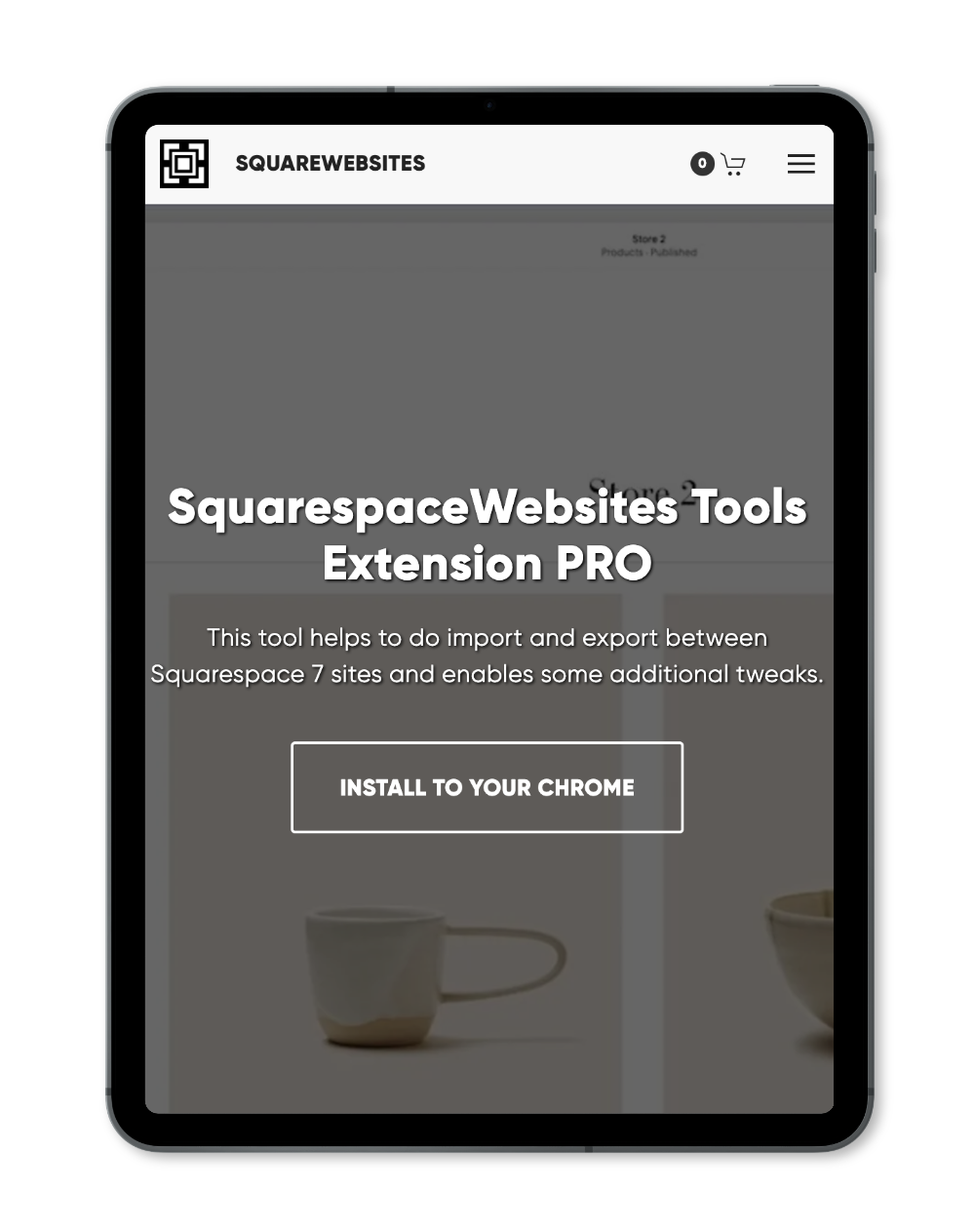
Get the must-have tool for designers and pro DIYers
The SquarespaceWebsites Tools Chrome extension helps you import and export content across Squarespace websites, quickly and easily.
The Pro version also includes plugins for tables and many other features worth checking out.
Step 3
Import your data and files
Physical and service products can beexportedto a .csv file and then imported into 7.1.
Mailing lists can be exported and then imported back into Campaigns.
Re-upload your files. These are documents and anything that you uploaded via the Link Editor or Custom CSS. You’ll have to reconnect them, too.
Step 4
Miscellaneous
Do any of these actions if they apply to your website.
Copy/paste your API keys if you have any. These are typically keys for Google Analytics, Amazon or reCaptcha.
Disconnect and reconnect your extensions. In my case I only have one extension: Greenback for my bookkeeping.
Copy/paste your Advanced Code Injection. Again, only do this if whatever you used code injection for still applies to your 7.1 site. In my case these are things like MemberSpace, AddThis Share buttons, Schema entries, Accessibility widget.
Copy and save your custom CSS. Since classes are mostly different in 7.1 you may not be able to do a straight copy/paste with your CSS, or what you used it for in 7.0 may not apply in 7.1. But definitely save the code somewhere because you are likely to reuse some it.
Protect your SEO. Squarespace have a good article here on how to maintain your SEO ranking after a switch.
Do you have a Google Workspace account through Squarespace? In this case you can contact Squarespace Support and ask them to move it to your new website. You could do this at the same time when you ask for a refund if that applies to you, see Step 7.
Step 5
Upgrade your trial to a paid plan.
I usually recommend the Business Plan if you don’t sell products or services, or one of the Commerce Plans if you do.
You can save 20% on your first Squarespace payment with code KERSTIN20.
Step 6
Connect your custom domain using one of these options:
If the domain was purchased through Squarespace this is very easy, you simply move your domain to the new site.
If your domain is registered with a 3rd party you'll have to disconnect it from the old website and reconnect to the new one. There might be a disruption with the site accessibility while the domain changes propegate through the internet.
You can also transfer your domain to Squarespace if you prefer to have everything under one roof. This is more complex and I usually don’t recommend it if you are happy with your current registrar and/or have your email through your registrar as well. But if you want to do this Squarespace have a good help article with a step-by-step guide.
Step 7
Launch your new 7.1 website and ask for a refund for your old site.
If your old website had an annual subscription you may qualify for a pro-rated refund. In this case reach out to Squarespace Support.