
Boost your Squarespace SEO with these 5 Quick & Easy Tips
The other day I checked out a web designer’s lovely website when I noticed that all of their external links open on the same page, they were not set to open in a new window or tab. This made me pause and think about all the small opportunities we miss to optimize our websites for SEO.
Google loves it when your site visitors spend a lot of time on your website.
So don’t send them away so quickly! Here are 5 easy tips to encourage your site visitors to stay a bit!
1. Open external links in a new window or tab
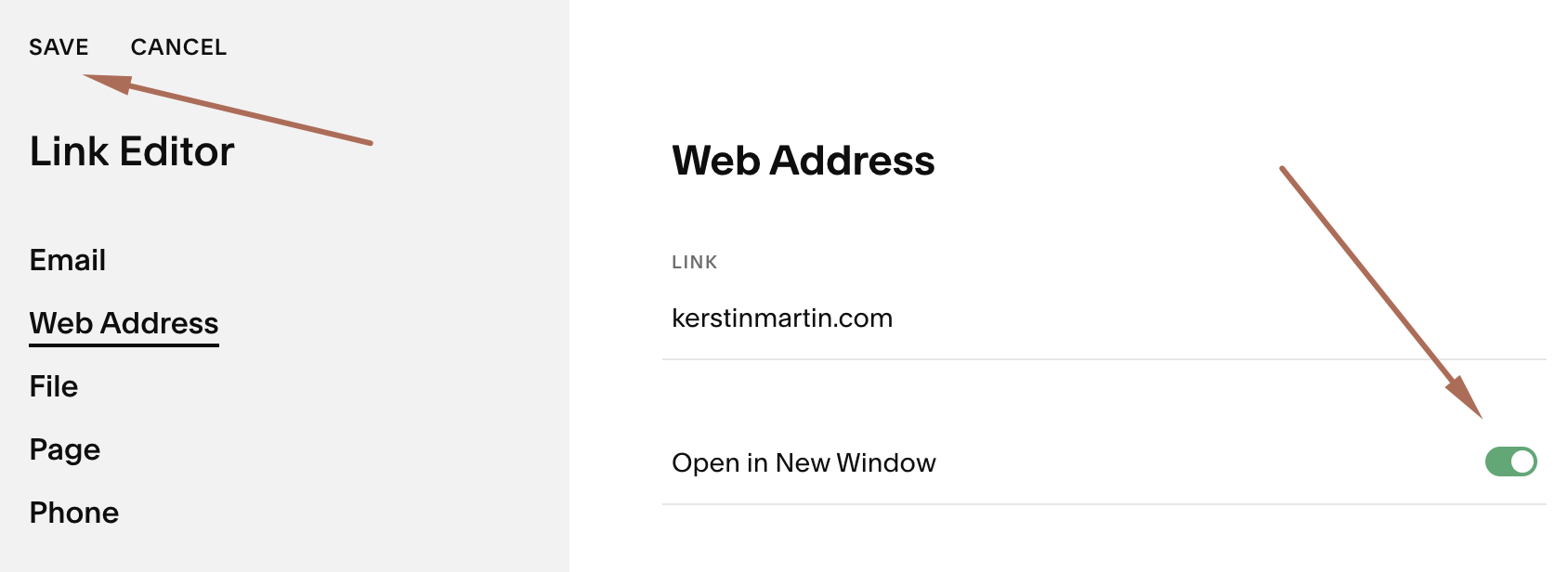
This is one of the most common oversights I see on people’s websites! Yet so easy to fix! Why do we need to open external links in a new window?
Because you don’t want to send people away from your website without an easy path back!
One of the problems is that the ‘Open in New Window’ feature is a little buried in Squarespace. And you have to click on SAVE and APPLY which many people forget to do.
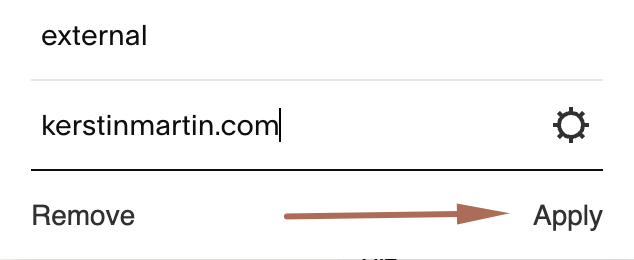
It takes 5 steps:
Open the Link Editor and add the URL
Click on the Gear Icon
Turn the ‘Open in New Window’ toggle on
Click on SAVE
Click on APPLY
You don’t need to do this for internal links, unless it’s a page that you’d like to keep open for people, like a sales page for instance.
2. Custom 404 page
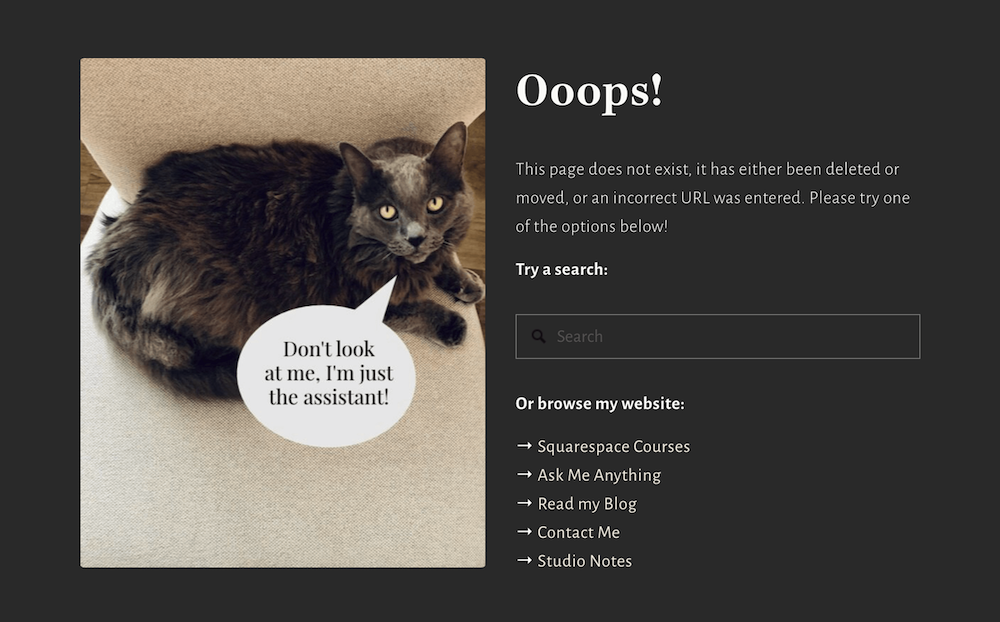
A 404 page is what people land on when they’ve entered an invalid URL for your website. This can happen due to typos or if you deleted a page or changed a URL without using 301s.
A custom 404 page not only looks better than the basic default page, it is also an opportunity to help people either find the content they were looking for, or offer links to other pages on your website. Remember, the goal is to keep them on your site rather than leave because they are getting the off-putting default page.
How to add a custom 404 page in 3 easy steps:
Create the 404 page, use the slug /404.
Hide that page from search results on the SEO tab.
From your dashboard go to > Design > 404 Page and select your custom page from the dropdown list.
3. Use 301s
301s are redirects for broken links on your website, like deleted pages or changed URLs. Not sure if you have any broken links? Here is a great website where you can check for them:
Make a list of all the broken links and then use 301s to direct people to the correct page on your website.
301s always have the same format:
/oldslug -> /newslug 301
You can add them by going to:
> Settings > Advanced > URL Mappings
4. Post-submit redirect
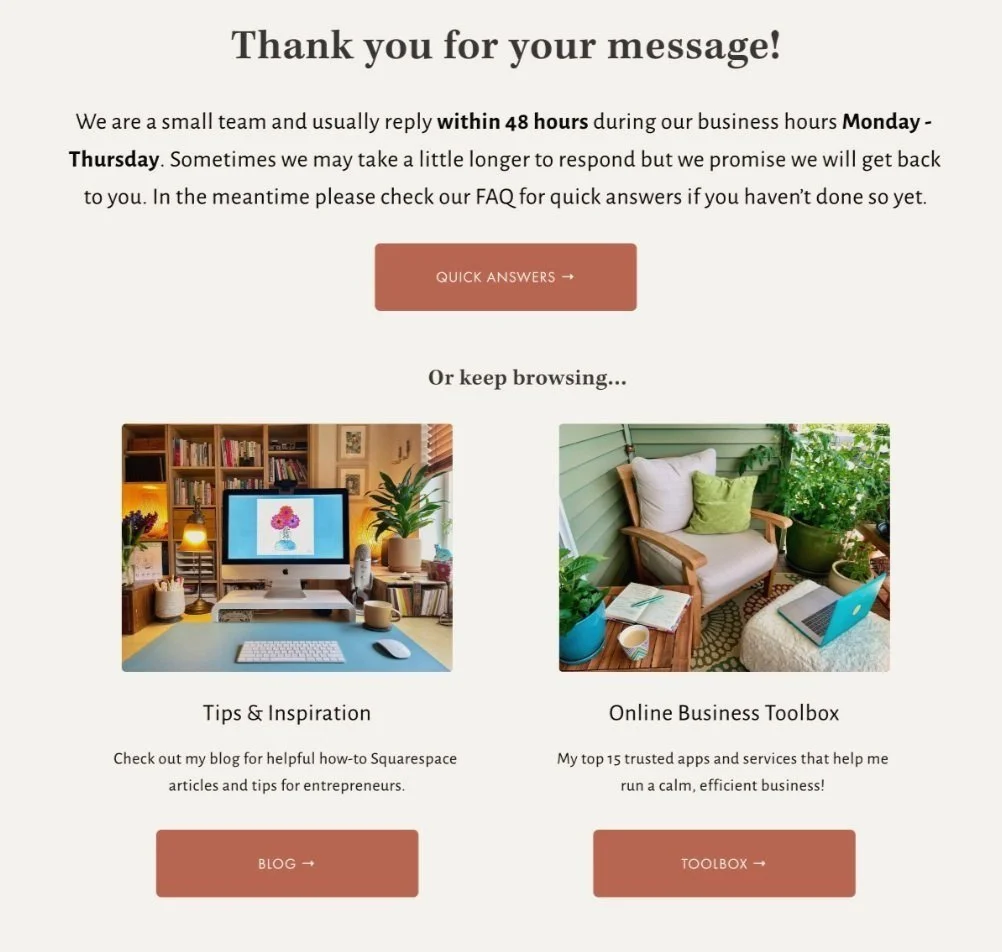
A post-submit is either a message or a redirect so that your site visitor knows what to expect after they send you a message or subscribe to a mailing list. I love using the redirect because it invites visitors to keep browsing my website.
You can create a post-submit redirect in 3 easy steps:
Create the post-submit page, use a slug like /post-submit.
Hide that page from search results on the SEO tab.
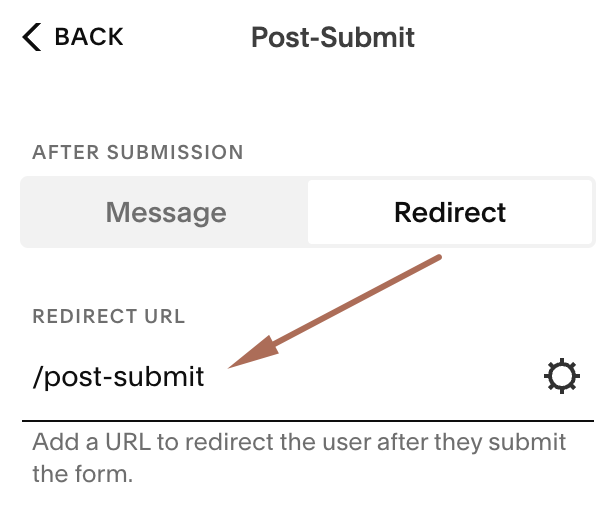
On your form or newsletter block scroll down the Content tab and click on Post-Submit and then Redirect and add the slug for the page you created.
5. Uncluttered top navigation without social links
The top navigation is your website’s backbone. Make it easy for your site visitors by only offering the most important links up there, and don’t overwhelm them with too many choices.
A couple of tips for an optimized navigation:
Don’t have more than 5 links plus a Call-to-Action button
Don’t use social links in your top navigation. I know this is popular but the social links take people away from your website and clutter up a clean navigation. Add them to the footer instead, people are used to look for them there as well.