
How to add a Blog Subscription in Squarespace in 5 Easy Steps
Blogging is one of the best ways to boost your SEO and offering a blog subscription option not only makes it easier for your readers to never miss a post, it will also increase reader loyalty.
Squarespace does not have a blog subscription widget like Wordpress but you can easily create an email blast for your blog posts with Squarespace Campaigns. Here are the five steps to set this up, please note that the screenshots are 7.1 so it may look a little different in 7.0 but the functions are all the same.
Step 1
Create Mailing List
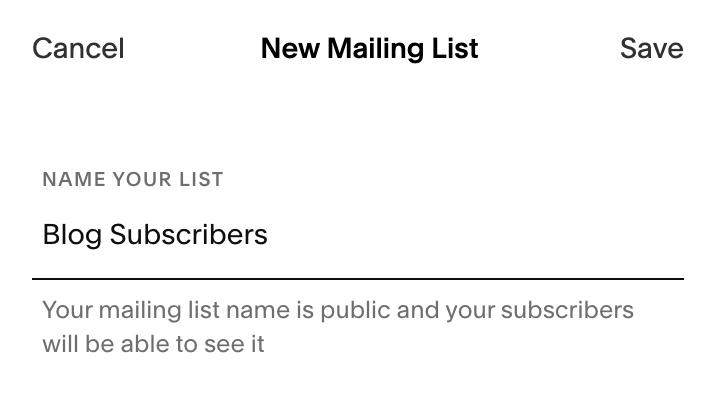
Go to > Marketing > Email Campaigns > Mailing Lists > Add and create a mailing list for your Blog Subscribers.
New to Campaigns? Click here to learn more about it!
Step 2
Add Sign-Up Form
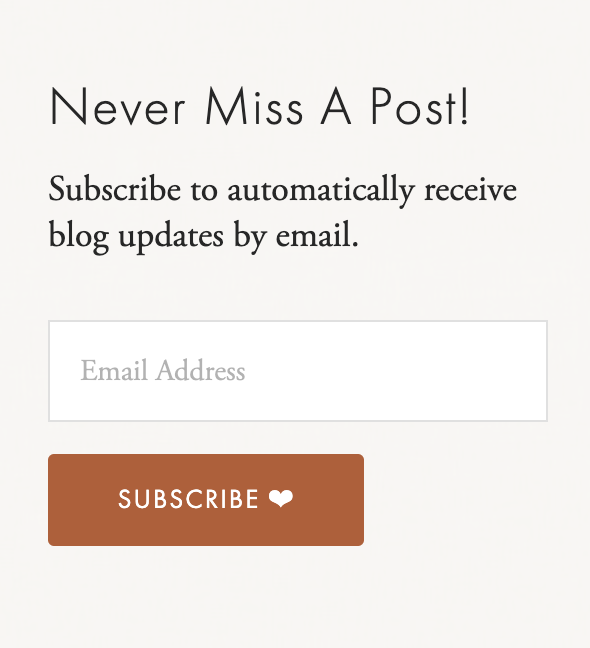
Using the newsletter block, you can add a sign-up form in any of these places:
Blog sidebar
Website footer
I recommend having a ‘global’ location for this rather than adding it individually to each blog post. This way, you can easily update or remove the sign-up form if you ever want to make changes.
If your blog doesn’t have a sidebar I can highly recommend this plugin which I use myself:
Sidebar Plugin (affiliate link, save 15% with code KMSS15)
Step 3
Create Email Draft
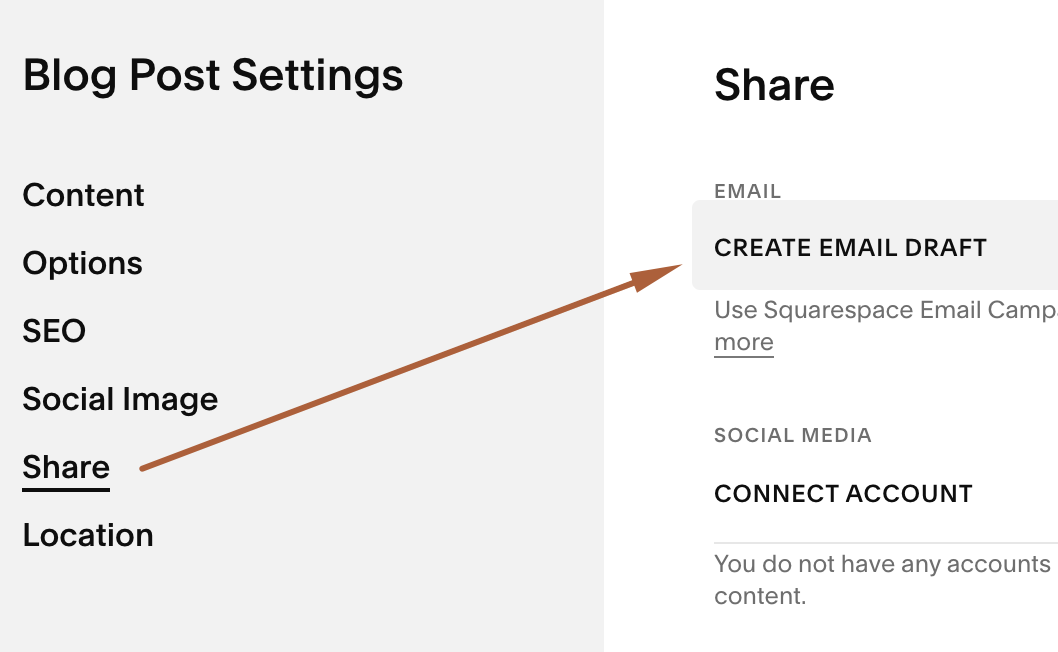
Write your blog post and publish it. Once you have published it go to your Blog Post Settings > Share > Create Email Draft and then select > Go to Campaigns
Step 4
Style Email
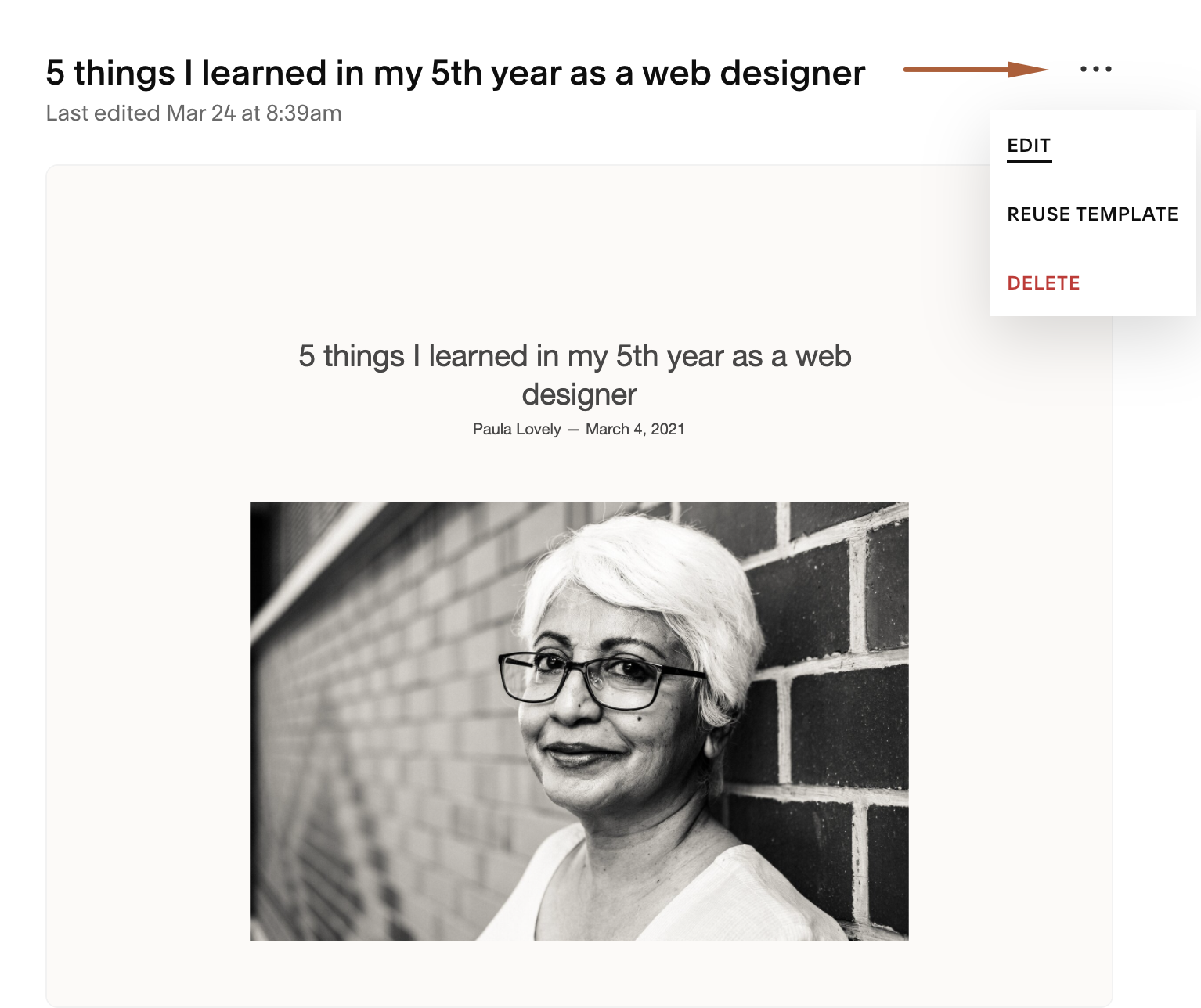
In Campaigns go to > Drafts and you’ll see your post in there. Click on the draft and then on the three dots next to the preview and select > Edit.
Style your email as desired. I usually do these six things:
Remove my author name.
Select my preferred font package.
Make the font a little bigger.
Remove the side padding from my text sections.
Change the link to my blog post to read “Leave a Comment”.
Remove the ‘Powered by Squarespace’ link in the footer.
Step 5
Send it!
Once you’ve styled your email you are ready to send it! If you wish you can send yourself a test email first, I don’t usually do that because this is from an existing blog post so I have already checked links and proofread it.
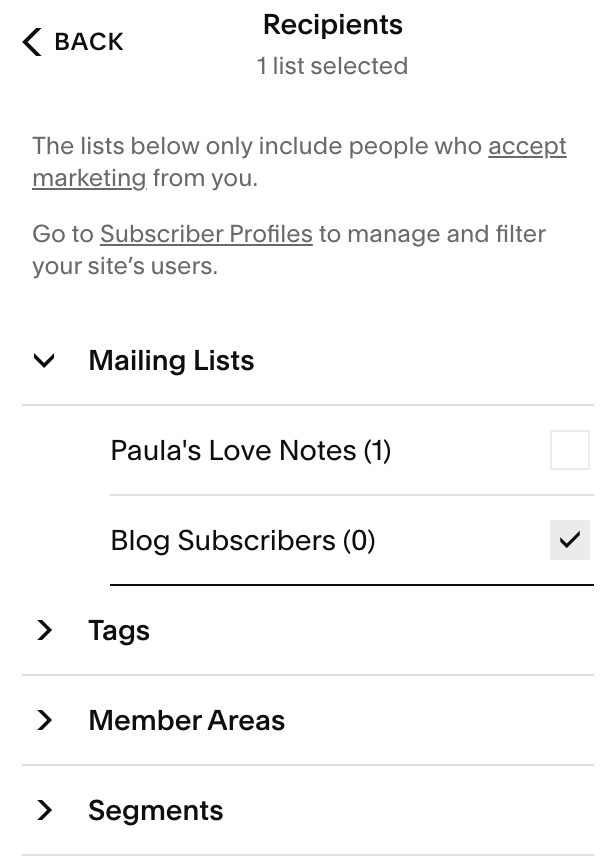
Go to the Email tab and click on Unique Recipients and select your Blog Subscribers Mailing List. Click on Back and then Send to Recipients.
Confirm and done!
Repeat
Steps 3-5 for each blog post.