
Chrome says my Squarespace site is NOT SECURE despite valid SSL certificate!

As I was teaching my Squarespace class at our local Community College this morning, I mentioned an issue I was having with Chrome showing my website as being Not Secure, even though my SSL certificate is valid. One of my students promptly said: “You should write a blog post about that!” She is right!
What happened:
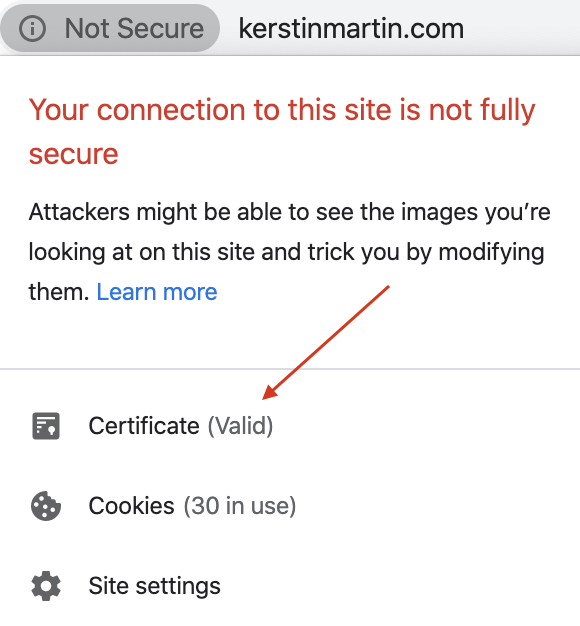
Last week I noticed that my website no longer showed the padlock which indicates that a website has a secure SSL connection. SSL stands for Secure Socket Layers and is a security protocol that ensure that data between a website and its user is encrypted and transmitted safely. Squarespace automatically protects our websites with a free SSL certificate and our SSL is automatically enabled.
As you can see in this screenshot my SSL Certificate is actually valid (so data is transferred securely) but Chrome still gives a warning about the connection not being fully secure. So what is going on here?
This is a Mixed Content error.
It took a few emails with the Squarespace Customer Care team as well as asking my favorite Facebook Squarespace designer group to get to the bottom of this. Turns out that Chrome throws a Mixed Content error when my Tailwind Extension is enabled!
Say what?
A Mixed Content error is given when a secure HTTPS page includes insecure HTTP resources. How do I know if my page has Mixed Content? If you are on a Mac press OPTION+CMD+J (sorry, I don’t know the shortcut on a PC) and you will get this:

Because of the file name I knew that this was my Social Logo image that was being served over HTTP. So I contacted Squarespace again and they confirmed that images uploaded to Squarespace redirect from an HTTP URL to an HTTPS URL. But because the URL appears as HTTP in the page source code, some 3rd party tools such as Tailwind might mark the image as Mixed Content and throw this error, even though the image will redirect to an HTTPS URL and a valid SSL certificate has been issued for my Squarespace site.
How to fix it!
This is definitely one of those cases where I had to push back with Squarespace Customer Care until my case landed with someone who finally offered a solution. He suggested adding a meta tag that would enforce a "Content Security Policy" and pointed me to this article for more background. So I did that, and it worked! I no longer get the “Not Secure” warning while my Tailwind extension is turned on. Yay!
Go to > Pages > Custom Code > Code Injection and add this code into the Header:
<!-- Enforce Content Security Policy --> <meta http-equiv="Content-Security-Policy" content="upgrade-insecure-requests"> <!-- End Enforce Content Security Policy -->This is just a workaround, and the Squarespace engineers are now aware of this issue and will hopefully implement a proper solution at the source of this issue.