Have you ever wondered how to get circle images or images with rounded corners on your website? Until now this either required the use of custom CSS or you had to create the shape in a photo program. No longer! You can now style corners directly in your website!
This is an amazing new feature that Squarespace launched in September 2021 and I could not wait to share it with you as we’ve been asking for this for years. Thank you, Squarespace!
Right now this only works for image blocks. If you want to style other image types, like auto layouts or gallery sections you’ll still need to apply custom CSS or create the shape before you upload the image. If you want to learn how to do that I teach this in my freshly updated Squarespace Express course.
Step-By-Step

Step 1
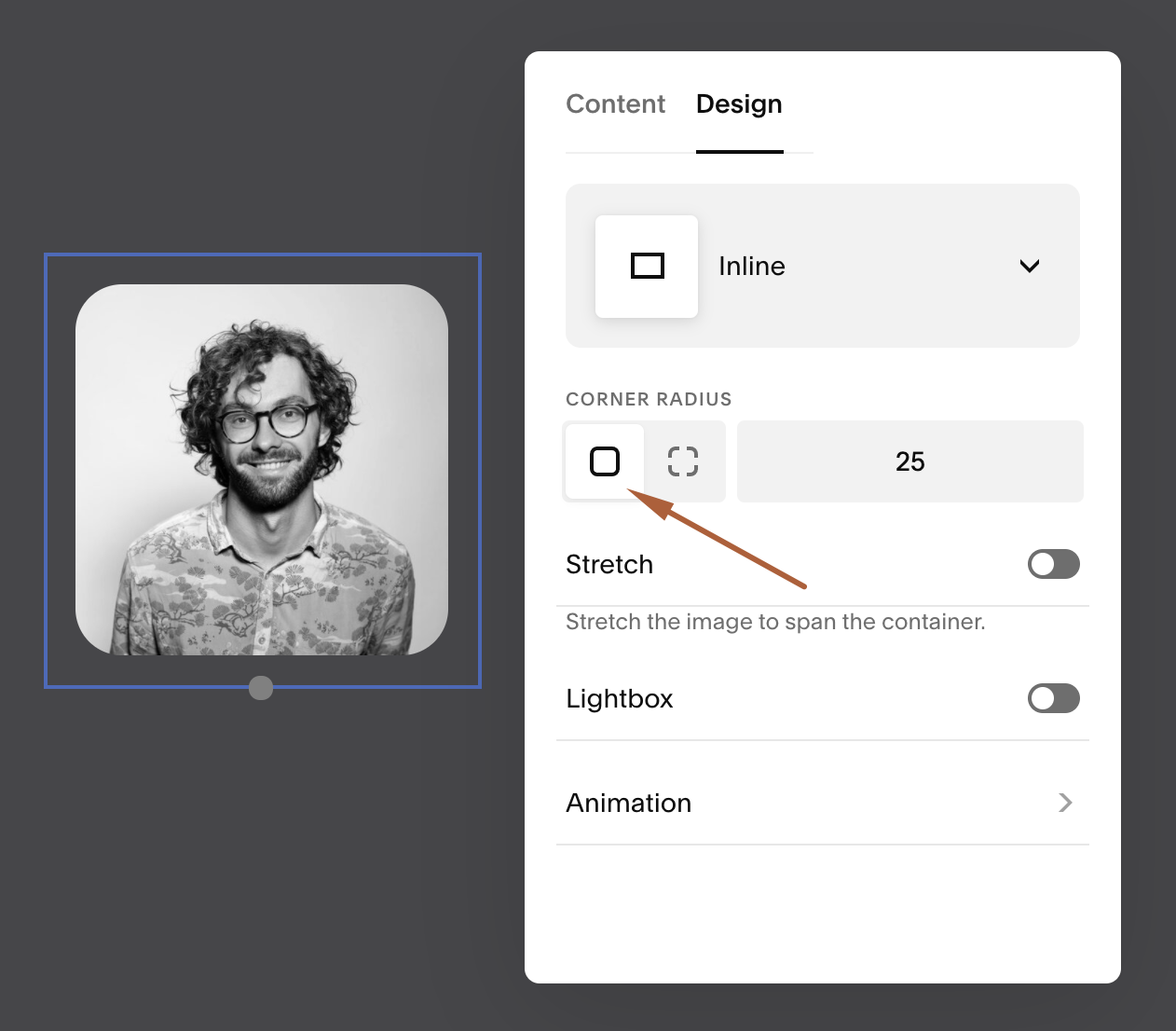
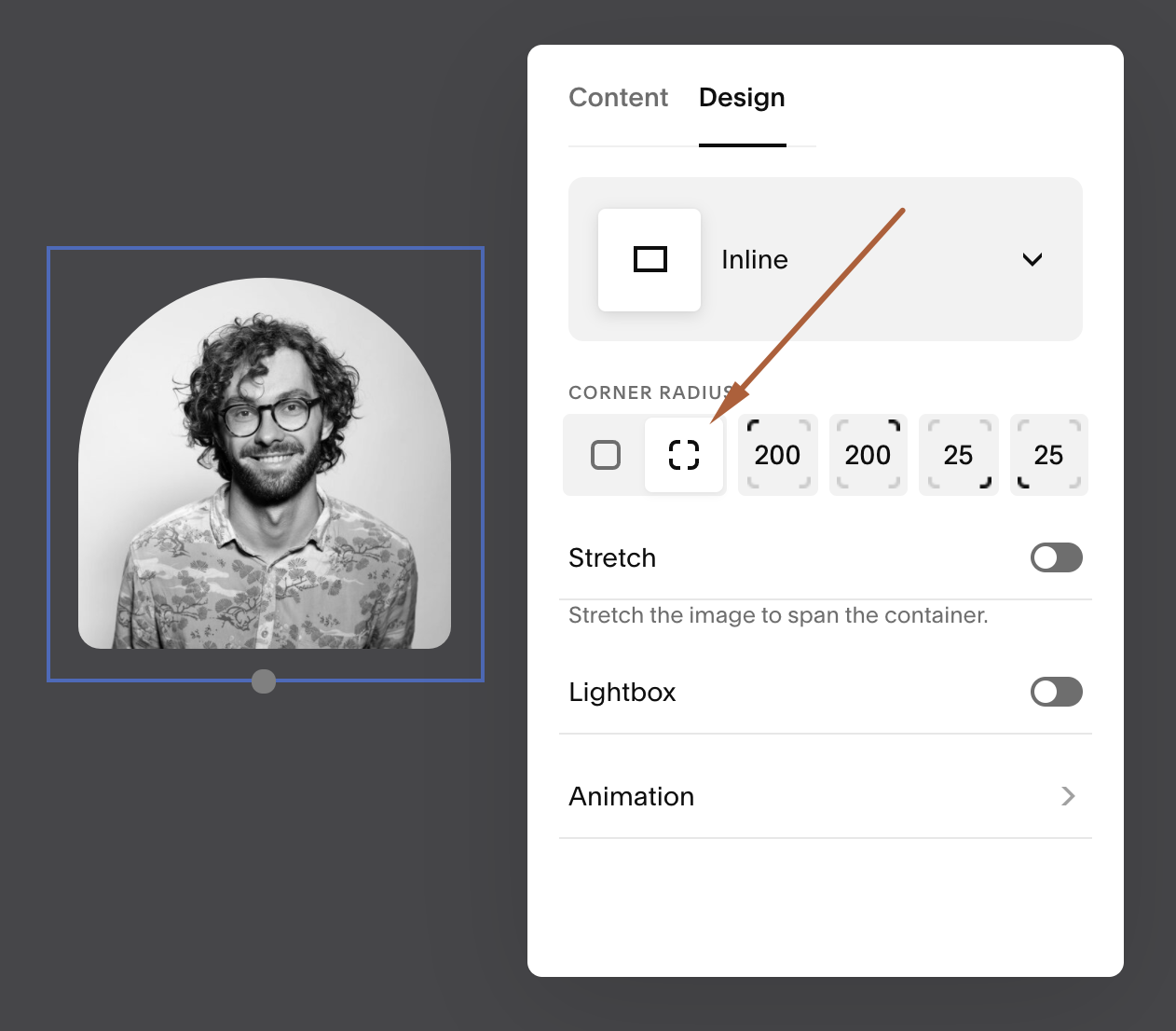
Go to Image Block > Design > Corner Radius
Step 2
Click on the first icon to apply the same radius to the whole image.
Step 3
Click on the second icon to apply different radius values to each corner.
☞ Tip 1
For circle images make sure that the original image is square. You can always use the built-in editor to crop a vertical or horizontal image into a square.
☞ Tip 2
The value for circle images depends on the size of the original image, 100 works in the example above but for a larger image it will need a higher value.