
How to add a File Upload to a Form in Squarespace
Update August 2026: Squarespace has added a file upload feature to their forms! Yay! So you no longer need this workaround; simply use a Squarespace form.
In all my years of using, and loving, Squarespace it has never been possible to add a file upload to a form. It’s a much requested feature and given that we can link to Google Docs for instance I am surprised that they have not come up with a solution for this.
But we won’t let that deter us, right? If there is one thing I am known for it is to tweak the system to make it work for what I, or my clients, need!
In this case there are quite a few solutions out there, including the use of 3rd party apps such as jotform.com, but the one I am sharing here is by far my favorite. We are using a Dropbox feature called File Request. You do need a Dropbox account for this and you can get a basic free plan here.
☞ Note: This does not work with Google Docs as Google does not have the needed File Request feature.

Dropbox file request lets you request files from anyone and collect them right in your Dropbox account.
With file request:
Anyone can send you a file you've requested, whether they have a Dropbox account or not.
All the files you collect are automatically organized into a Dropbox folder you choose.
People who upload files to your file request cannot access your Dropbox account. Only you can view files uploaded by others, unless you decide to share them.
Set it up in 5 Easy Steps
Step 1
1. Add a form on your page.
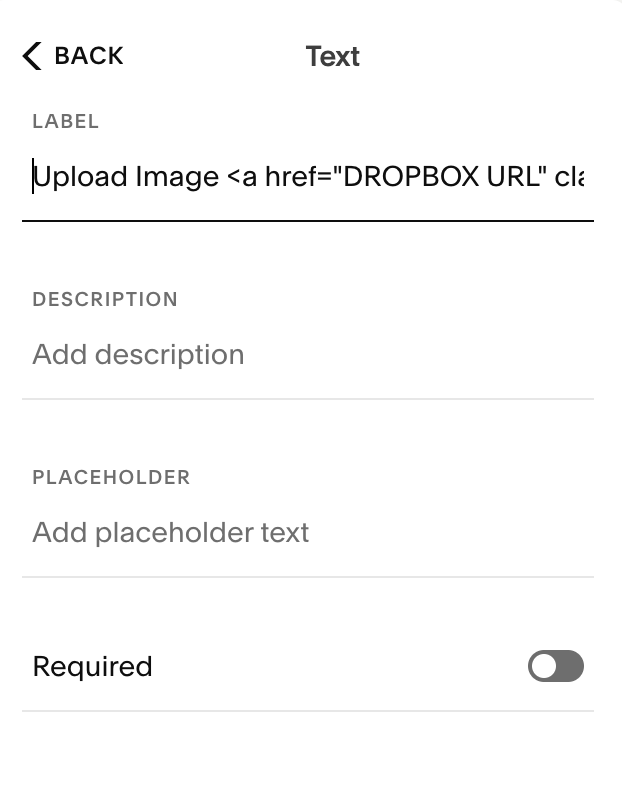
2. Add a Text or Line field. The text field is great if you want to collect information about the upload, for instance asking people to let you know the file name so that you can identify it. If you don’t want to do this, use the line field and remove the line if you don’t want that.
3. Copy and paste the following string into the Label field:
Upload File <a href="DROPBOX URL" target="popup" onclick="window.open('DROPBOX URL','popup','width=600,height=600'); return false;">UPLOAD</a>
What does this code do?
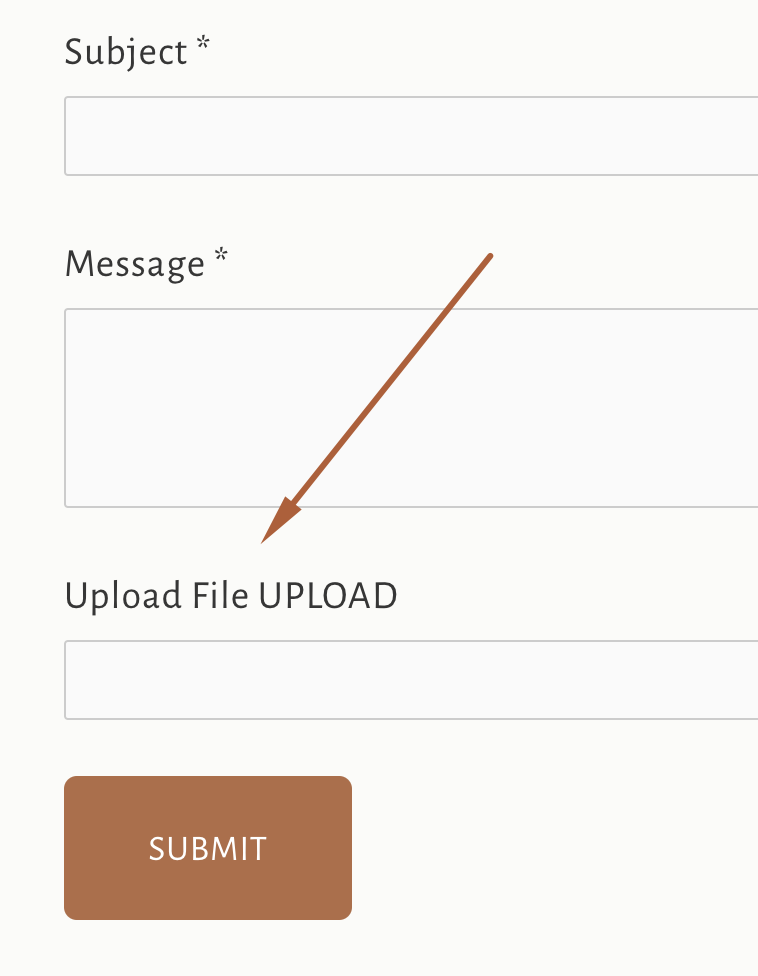
This code will show the text “Upload File UPLOAD” where UPLOAD is actually a link. When people click on it a pop-up window will appear where the file is uploaded.
Changing the size of the window:
You can change the height and width of the pop-up window as desired.
Customize your text:
You can replace “Upload File” and “UPLOAD” with any text you like.
☞ Troubleshooting
Sometimes when you copy code the quotation marks can cause problem, make sure the quotation marks are straight " and not curly “. That can sometimes help if you are having issues with rendering the code.
Step 2
1. Log into your Dropbox account. Don’t have one? Get a basic free plan here.
2. In the Dropbox menu on the left click on File Request
3. Then click on the blue button that says New Request
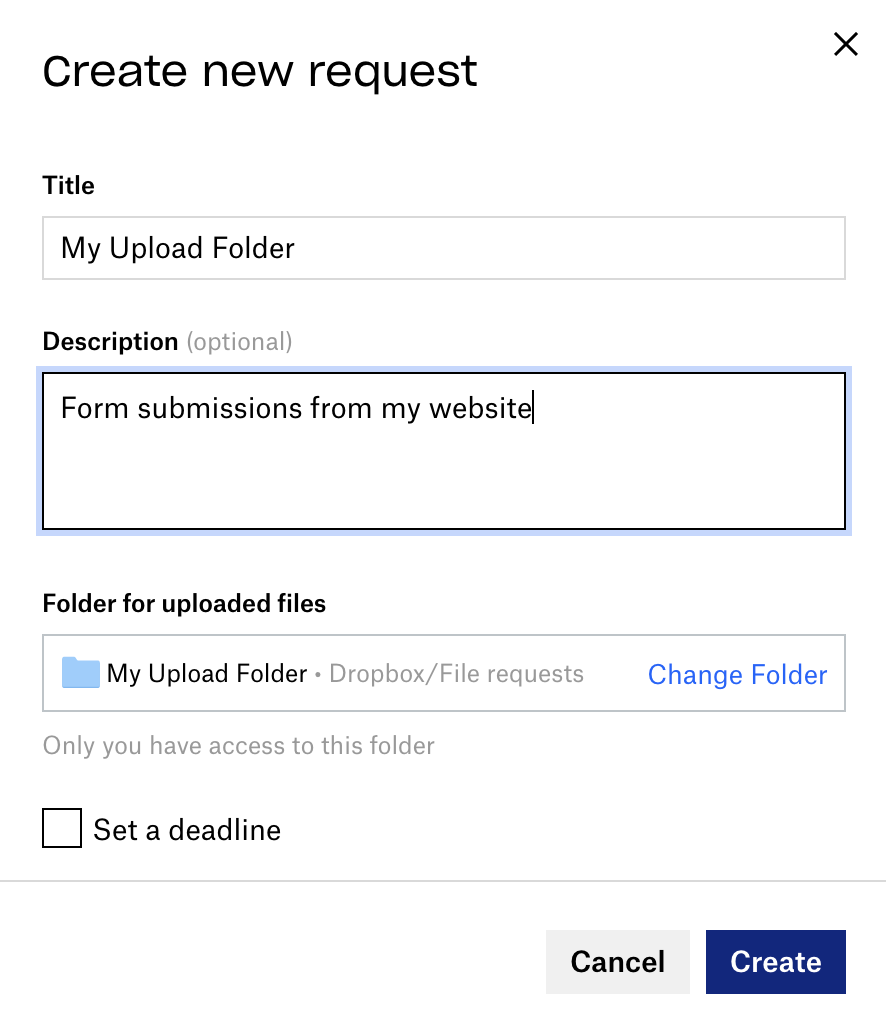
4. Add a Title and Description and click on Create.
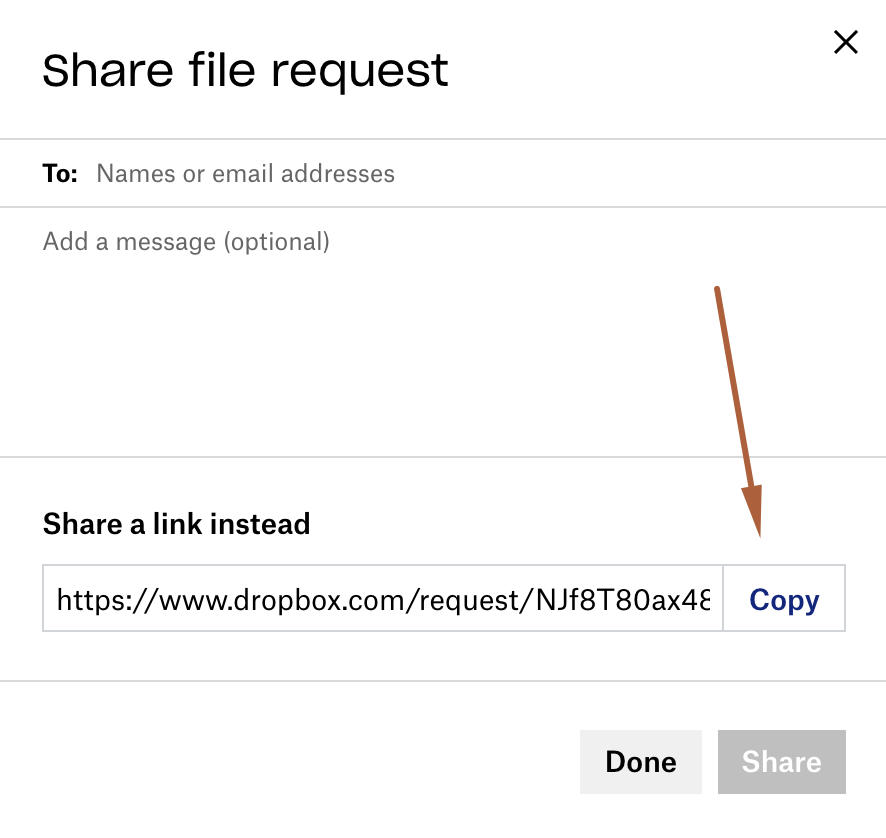
5. A link will be generated on the next form. Click on Copy.
Step 3
1. Go back to your Squarespace form
2. Find the text or line field where you added the string above
3. Replace the words DROPBOX URL with the link that you just copied.
4. Make sure you replace it in both places.
5. Make sure you don’t delete any of the quotation marks by mistake. This code can be a little fiddly and it’s important to not change anything other than the DROPBOX URL.
Step 4
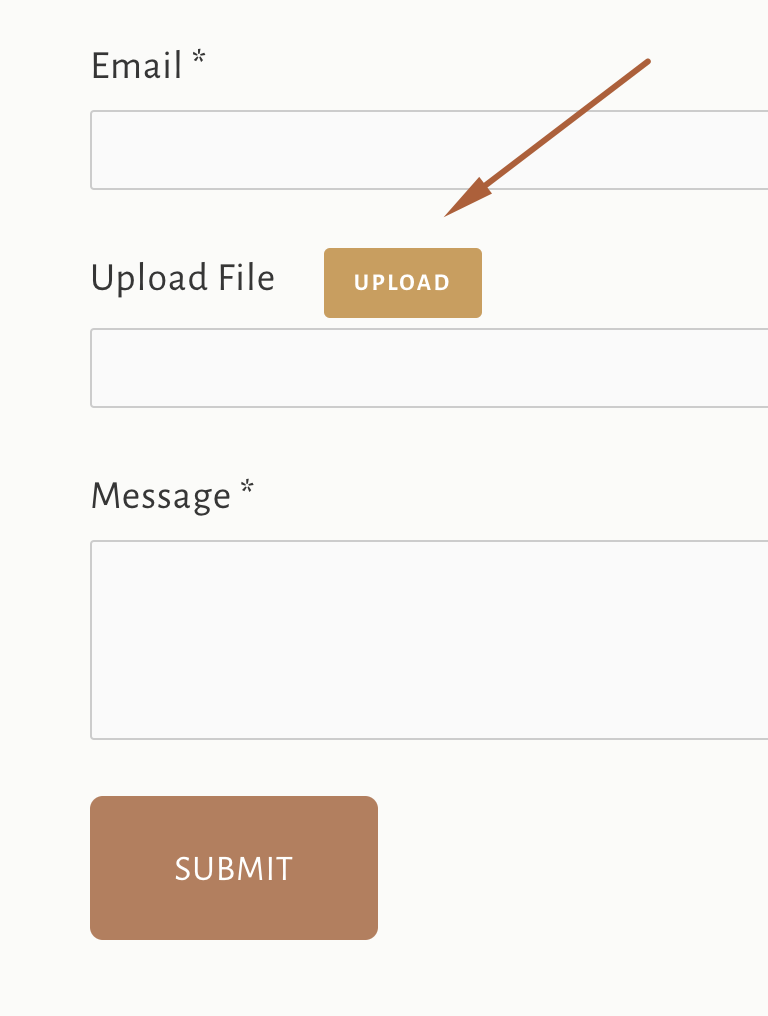
Customize your UPLOAD link.
Style the upload button using custom CSS, here is the code that I use which you can of course adapt to your own styling preferences.
For instance, you can change the padding, the colors, the font size etc.
Important:
Replace the #collection-ID with your own. This ensures that this code is only used on the page with your form. Here is a nifty Chrome extension to help you easily identify your page collection ID.
For 7.0 websites:
/* Dropbox File Request Upload Button */
#collection-ID label.title a {
  background-color: #e6b40f;
  border-radius: 3px;
  margin-left: 20px;
  text-transform: uppercase;
  padding: 10px 15px;
  color: #fff;
  letter-spacing: .1em;
  font-size: 12px;
  font-weight: bold;
}
For 7.1 websites:
/* Dropbox File Request Upload Button */
#collection-ID .field-list .title a {
  background-color: #e6b40f;
  border-radius: 3px;
  margin-left: 20px;
  text-transform: uppercase;
  padding: 10px 15px;
  color: #fff;
  letter-spacing: .1em;
  font-size: 12px;
  font-weight: bold;
}
Step 5
People still have to submit the form!
Sometimes people get a little confused, thinking that submitting the file also submits the form. That is not the case as the file submission goes to Dropbox, not Squarespace. People still have to submit the actual form if you also want to get their answers.
So make sure that you add respective verbiage to your form.
Where to get help for this method
I regret that I am unable to offer technical support via email or the comment section. Here are some options:
1. Private Support Group
If you are one of my students and in my support group feel free to ask questions there!
2. Free Facebook Groups
Otherwise I can highly recommend any of these free Facebook groups where people are always very helpful.
→ Squarespace Rockstars
→ Squarespace Community
→ Squarespace Entrepreneurs
→ Squarespace Custom CSS Resource Group
→ Squarespace for Bloggers and Creatives
3. Hire Help
Reach out to Chris Schwartz-Edmisten who is a great CSS expert or look for a designer who offers support in my designer directory.
4. Take a Course
Take Chris’ awesome CSS Toolbox course and learn all about CSS basics and lots of nifty swipe code to up-level your designs. I am a happy affiliate of this course so I earn a small commission if you purchase it, at no extra cost to you.