
Add “sponsored” Affiliate Links to Text & Buttons in Squarespace
Update:
Since writing this post a couple of smart Squarespace designers have developed plugins to make this easier. Feel free to check them out. These plugins require a Squarespace Business Plan or higher. If you are not comfortable adding plugin code to your website, or if you are on a personal plan, you can still use my method below.
Affiliate Link Genie plugin (affiliate link) by Will Myers
Affiliate plugin by Excito LLC
Why it matters
Earning extra income through affiliate links is very popular these days! If you’ve been doing this for a while you will already be familiar with the nofollow attribute that Google recommends for affiliate links.
In July 2021 Google released a so-called link spam update to their algorithm and while they update the algorithm all the time this is one to pay extra attention to:
“As a part of our ongoing effort to improve ranking for product-related searches and better reward high-quality content, when we find sites failing to qualify affiliate links appropriately, we may issue manual actions to prevent these links from affecting Search, and our systems might also take algorithmic actions. Both manual and algorithmic actions may affect how we see a site in Search, so it's good to avoid things that may cause actions, where possible.” –Source
If you have not yet qualified your affiliate links now is the time to do so! The rel=”nofollow” is apparently still ok but Google recommends using the rel=”sponsored” attribute.
The Challenge in Squarespace
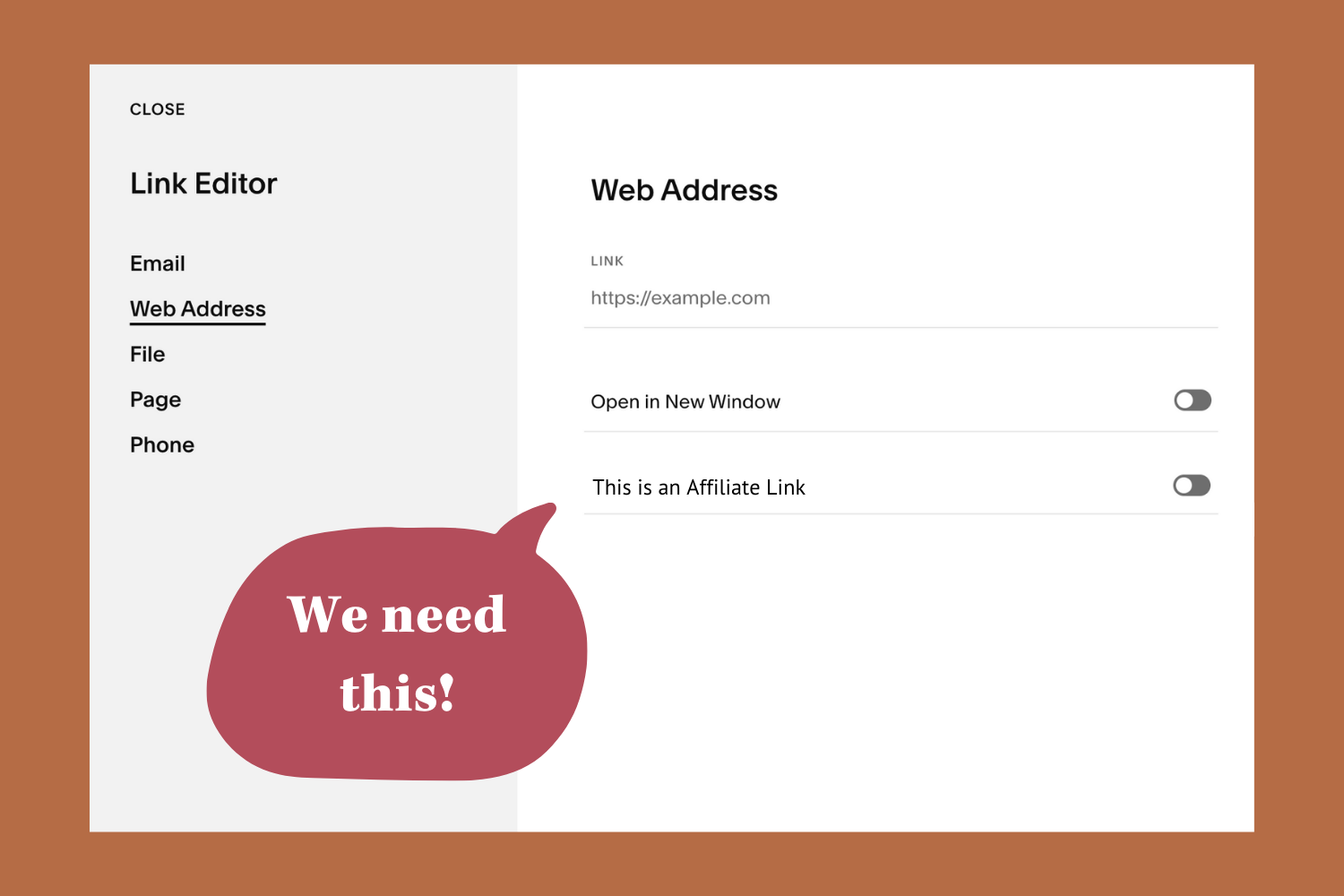
Even though the nofollow recommendation has been around for a long time there has never been an easy way to add the attribute to a link in Squarespace. Would love to see something like this:
The Workaround
Use code! We can utilize the Markdown or Code blocks and use HTML and CSS to add the required attribute. AND. You can even create a BUTTON this way! Which is what I was really after as I use buttons a lot on my toolbox page. Below I’ve listed the swipe code so you can do this, too!
The Text Saver Chrome Extension
But first things first! In my video I show you how I use this nifty, and free, Chrome extension to save code snippets that I use all the time. I love this extension, it saves so much time!
Code Explanations
Link Attributes
a href="URL" > the HTML for links
rel="sponsored" > the required attribute
target="_blank" > opens link in new page or tab
Styling
span > targets specific words
margin > add space around your paragraph
padding > add padding around text
color > font color
background-color > background color
font-size > font size
font-weight > font boldness (can be ‘bold’ or a number)
position > specifies whether an element is relative, fixed etc.
Swipe Code
Code for Link Headline
<h4><a href="URL" rel="sponsored" target="_blank"><span style="color: #C46345;">Link Name</span></a></h4>Replace URL with your affiliate link
Replace ‘Link Name’ with your affiliate name
Replace h4 with your own desired heading size
Replace color with your own link color code
Result:
Code for Link Sentence or Paragraph
<p style="margin-top: -2px; margin-bottom: -17px;">Add your paragraph text here and this is your link: <a href="URL" rel="sponsored" target="_blank"><span style="font-weight: bold;">Linke Name</span></a>. You can write more after the link.</p>Replace URL with your affiliate link
Replace ‘Link Name’ with your affiliate name
Adjust margin values as desired
Remove span code with font weight if desired
Result:
Add your paragraph text here and this is your link: Link Name. You can write more after the link.
Code for Button
<div style="background-color:#b56c45; color: #fff; border-radius: 6px; text-transform: uppercase; font-size: 0.9em; letter-spacing: 0.05em; position: absolute; padding: 22px 40px;"><a href="URL" rel="sponsored" target="_blank">Get it here →</a></div>Replace URL with your affiliate link
Replace ‘Get it here →’ with your desired wording
Adjust margin values as desired
Adjust padding as desired
Add your own background color
Add your own font color
Adjust font size
Result: